Sngine Messenger Documentation
This document explains the real setup flow for the Messenger Flutter app before delivery or production release. It covers Flutter installation, Messenger backend addon upload, purchase code activation, package name changes, app branding, license activation, deep links, Timeline integration, Firebase push notifications, Agora calls, and Messenger app settings.
The instructions below are based on the current project files and Messenger addon structure. If the
source code package includes updated api-addon-messangr files, upload those server files
before testing the mobile app.
1. Requirements
The tool version table below was originally verified from official sources on April 25, 2026. Check the official sources again before preparing a final production build:
| Tool | Stable Version | Notes |
|---|---|---|
| Flutter | 3.41.5 |
Use stable Flutter only for production delivery. |
| Xcode | 26.4.1 |
Required for iOS builds on macOS. |
| Android Studio | Panda 4 | 2025.3.4 |
Required for Android SDK and emulator tools. |
2. Install Flutter
- Download Flutter SDK from the official Flutter website.
- Extract it to a fixed location such as
/Users/yourname/development/flutter. - Add
flutter/binto your systemPATH. - Run
flutter doctor. - Complete any missing dependencies reported by Flutter Doctor.
flutter --version
flutter doctor
flutter doctor -vflutter doctor shows a clean setup for the platforms you want to support.
3. Xcode and Android Studio
sudo xcode-select --switch /Applications/Xcode.app/Contents/Developer
sudo xcodebuild -runFirstLaunch- Xcode is required if you want to build the iOS app.
- Android Studio is required for Android SDK and release tooling.
- After installation, run
flutter doctoragain.
4. Run the Project
flutter pub get
flutter run
Build release files
flutter build apk --release
flutter build appbundle --release
flutter build ios --release5. Upload and Install the Messenger Backend Addon
The Messenger mobile app depends on a separate backend addon called api-addon-messangr.
The Flutter app alone is not enough. Upload the backend addon included with the source code to your
Sngine website first, then install and activate it with the purchase code from Fluttercrafters Store.
Required backend path
https://your-domain.com/api-addon-messangr/Correct upload location
your-sngine-root/
  bootstrap.php
  includes/
  content/
  api-addon-messangr/
    install.php
    update.php
    admin/
    app/
    assets/stickers/
    seeders/stickers.php
Upload with File Manager, FTP, or SFTP
- Extract the Messenger source package on your computer.
- Find the backend folder named
api-addon-messangr. - Open your hosting File Manager, FTP client, or SFTP client.
- Go to the Sngine installation root. This is the same folder that contains
bootstrap.php,includes, andcontent. - Upload the full
api-addon-messangrfolder into that root folder. - If you upload a ZIP file, extract it in the Sngine root and confirm the final path is not nested.
Correct:
your-sngine-root/api-addon-messangr/install.php

Wrong:
your-sngine-root/api-addon-messangr/api-addon-messangr/install.php
Wrong upload locations
content/themes/api-addon-messangrincludes/api-addon-messangrapi-addon-messangr/api-addon-messangr
How to get the Messenger purchase code
- Open store.fluttercrafters.com.
- Sign in with the account used to buy the Messenger product.
- Open My Purchases.
- Copy the License Code for the Messenger package.
- Use that code inside the Messenger backend installer.
Install the backend addon
- Open the installer in your browser:
https://your-domain.com/api-addon-messangr/install.php - Review the environment checks. PHP 8.0+,
curl,json, sticker assets, and seeder files should be present. - Enter the Messenger purchase code from Fluttercrafters Store.
- Run the installer. It verifies the code, activates it for the current domain, creates storage/tables, and seeds Messenger assets.
- Open the Messenger admin dashboard:
https://your-domain.com/api-addon-messangr/admin/index.php
When updating included server files
If a new Messenger source package includes an updated api-addon-messangr folder, upload the
new files to your Sngine root and overwrite the old backend addon files. After upload, open the update
link in your browser:
https://your-domain.com/api-addon-messangr/update.phpMinimum server checks
- Open
/api-addon-messangr/update.phponce after uploading updated files. - Confirm your API credentials exist in
/admincp/apis. - Open the Messenger admin dashboard in
/api-addon-messangr/admin. - Open app settings from
/api-addon-messangr/admin/app-settings/index.phpand confirm the license status is active. - Manage chat backgrounds from
/api-addon-messangr/admin/backgrounds/index.php. - Manage sticker packs from
/api-addon-messangr/admin/stickers/index.php. - Check that
GET /api-addon-messangr/app/settingsreturns valid data. - Check that
GET /api-addon-messangr/pingresponds correctly if available on your server.
6. Create Android Keystore
Before publishing the Android version, create your own release keystore. This is required for signed release builds and future updates on Google Play.
keytool -genkeypair -v \
  -keystore ~/your-messenger-release-key.jks \
  -keyalg RSA \
  -keysize 2048 \
  -validity 10000 \
  -alias your_key_alias
Then store the values in android/key.properties:
storePassword=YOUR_STORE_PASSWORD
keyPassword=YOUR_KEY_PASSWORD
keyAlias=your_key_alias
storeFile=/full/path/to/your-messenger-release-key.jks7. Change Package Name / Bundle ID
The current project still uses default test identifiers. Replace them with your final package name,
for example com.yourcompany.messenger.
| Platform | File | Current Value |
|---|---|---|
| Android | android/app/build.gradle.kts |
com.example.messenger.messenger |
| iOS | ios/Runner.xcodeproj/project.pbxproj |
com.example.messenger.messenger |
- Update
applicationIdandnamespacefor Android. - Update
PRODUCT_BUNDLE_IDENTIFIERfor iOS. - Review any deep-link scheme or bundle-specific integration that depends on your brand.
8. Change App Name
The current visible app name is Sngine Massnger. Replace it with your final Messenger brand name.
android/app/src/main/AndroidManifest.xmlforandroid:label.ios/Runner/Info.plistforCFBundleDisplayNameandCFBundleName.
Old name: Sngine Massnger
New name: Your Messenger Name
9. Change App Icon and Splash
The project already includes separate branding files for the launcher icon and splash visuals. Replace them with your own final branding before release.
App icon files
| Purpose | File | Notes |
|---|---|---|
| Main icon source | assets/branding/app-icon-source.png |
Used by flutter_launcher_icons for Android and iOS. |
| Launcher icon config | pubspec.yaml |
Contains the flutter_launcher_icons settings. |
flutter pub get
dart run flutter_launcher_iconsSplash files
| Platform | File | Usage |
|---|---|---|
| Flutter in-app splash | assets/branding/splash-source.png |
Displayed while the Messenger app bootstraps. |
| Optional branding asset | assets/branding/splash-foreground.png |
Keep it updated if your design flow uses this foreground asset elsewhere. |
| Android native splash background | android/app/src/main/res/drawable*/background.png |
Used by launch_background.xml as the full-screen launch background. |
| iOS splash background | ios/Runner/Assets.xcassets/LaunchBackground.imageset/background.png |
Used by the iOS launch storyboard. |
| iOS splash image | ios/Runner/Assets.xcassets/LaunchImage.imageset/ |
Replace LaunchImage.png, @2x, and @3x. |
- Replace
assets/branding/splash-source.pngwith your final splash design. - Replace Android launch background images in the
drawable*folders. - Replace iOS launch assets in
LaunchBackground.imagesetandLaunchImage.imageset. - Run a clean build after changing branding assets.
flutter clean
flutter pub get
flutter run
10. License Activation
Before using the Messenger package in production, generate and download your Messenger license file from the official license portal.
License portal
https://license.fluttercrafters.com/Required information
- Your website domain.
- Your purchase code.
- Open the license portal.
- Enter your website domain.
- Enter your purchase code.
- Generate and download the Messenger license file.
- Replace the local license file in this path:
messenger/lib/core/license/licenses.dartmessenger/lib/core/license/licenses.dart before building the app.
API credentials from your script admin panel
You also need the API credentials from your website admin panel because the Messenger app stores them at bootstrap time from the generated license.
https://your-domain.com/admincp/apisAPI KeyAPI Secret
11. Deep Links and Timeline Integration
Messenger is designed to work alongside the Timeline app. It uses deep links to open Messenger chats and to jump back to Timeline nodes such as users, posts, pages, groups, and events.
Current Messenger scheme
| Platform | Location | Current value |
|---|---|---|
| Android | android/app/src/main/AndroidManifest.xml |
sngmessenger://chat |
| iOS | ios/Runner/Info.plist |
sngmessenger |
Timeline-related runtime settings
timelineUrlSchemetimelineDeepLinkHosttimelinePackagetimelineAndroidStoreUrltimelineIosStoreUrl
These values are loaded from GET /api-addon-messangr/app/settings and are used when Messenger
tries to open the separate Timeline app or its store fallback links.
12. Firebase Cloud Messaging Setup
Sngine Messenger uses Firebase Cloud Messaging (FCM) for native incoming-call and group-chat push notifications. Firebase Authentication and Cloud Firestore are not required for this integration. Use one Firebase project for the Android app, the iOS app, and the server service account described below.
12.1 Create the Firebase project
- Open Firebase Console and sign in with the Google account that will own the production project.
- Select Create a project, enter a recognizable project name, and continue.
- Google Analytics is optional for Messenger push notifications. Enable it only if the customer needs Analytics.
- Accept the applicable terms, create the project, and wait until the project overview opens.
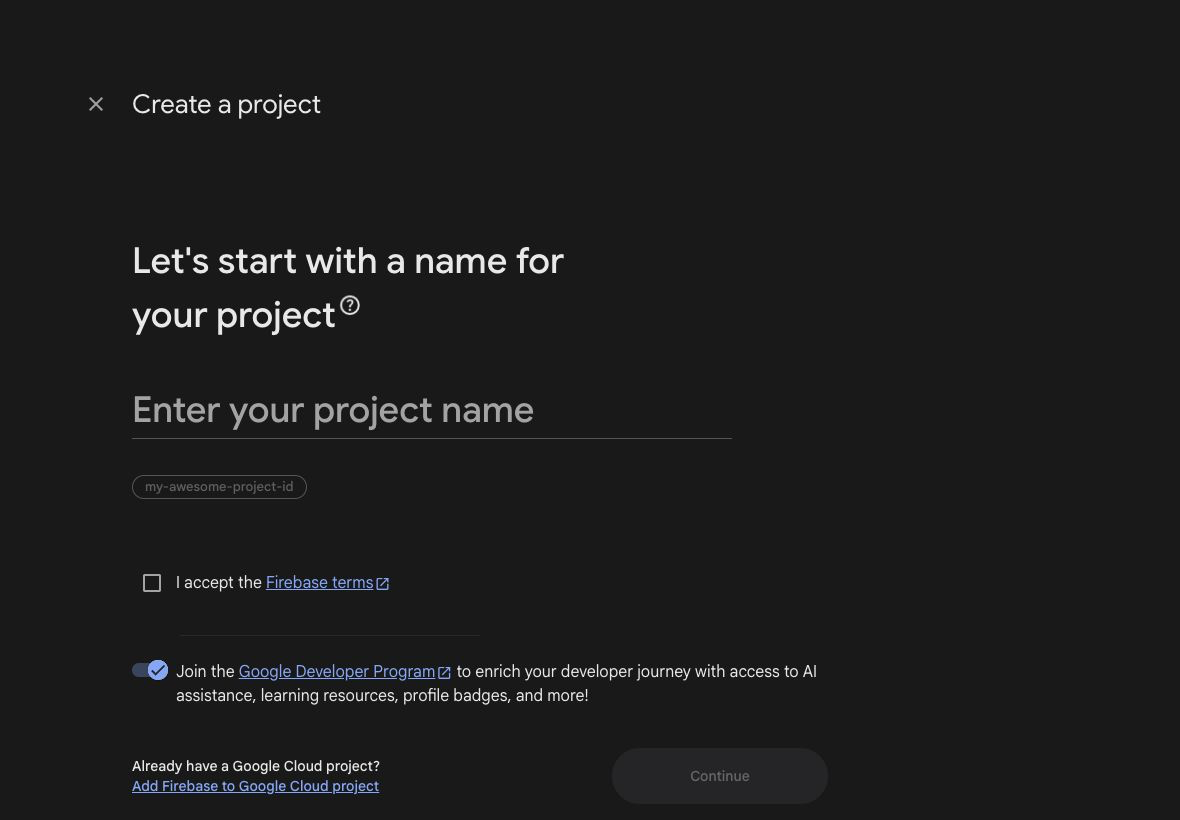
Enter the production project name and continue. Analytics is not required for FCM.
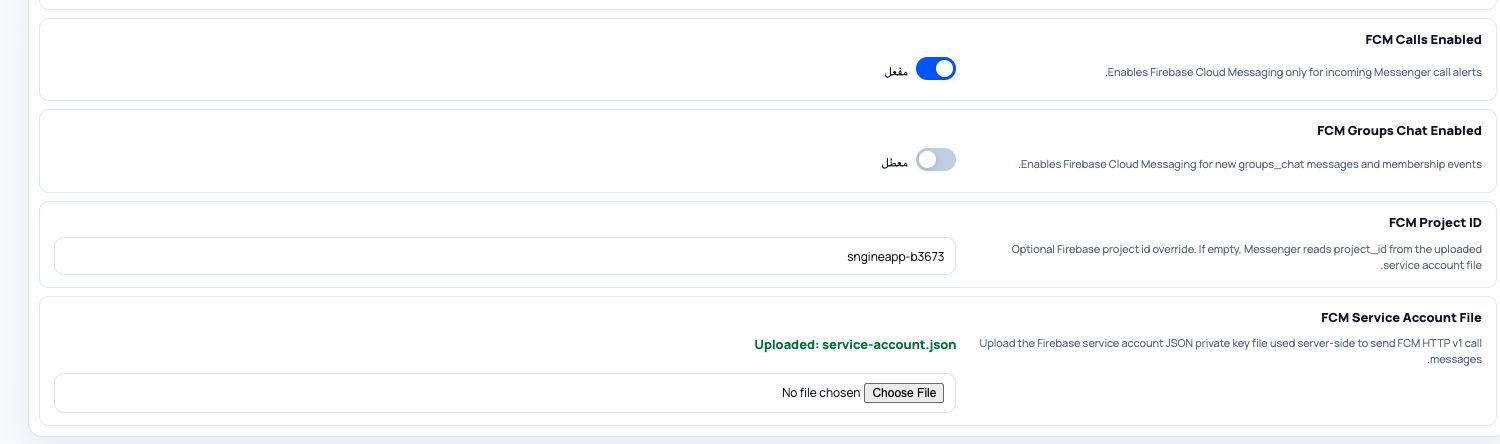
The final server-side values are uploaded from Messenger Admin after Firebase is ready.
12.2 Register the Android app
- From Project overview, select Add app, then choose the Android icon.
-
Enter the exact final Android package name from
android/app/build.gradle.ktsunderapplicationId. The package included in the source project iscom.snginemessanger.app; if you changed it for the customer, enter the new value instead. - Enter an optional nickname. SHA-1 and SHA-256 are optional for FCM-only use, but may be required if you later enable other Firebase products.
- Select Register app, then download
google-services.json. - Replace the project file at
android/app/google-services.json. Keep the filename exact; do not leave names such asgoogle-services (2).json.
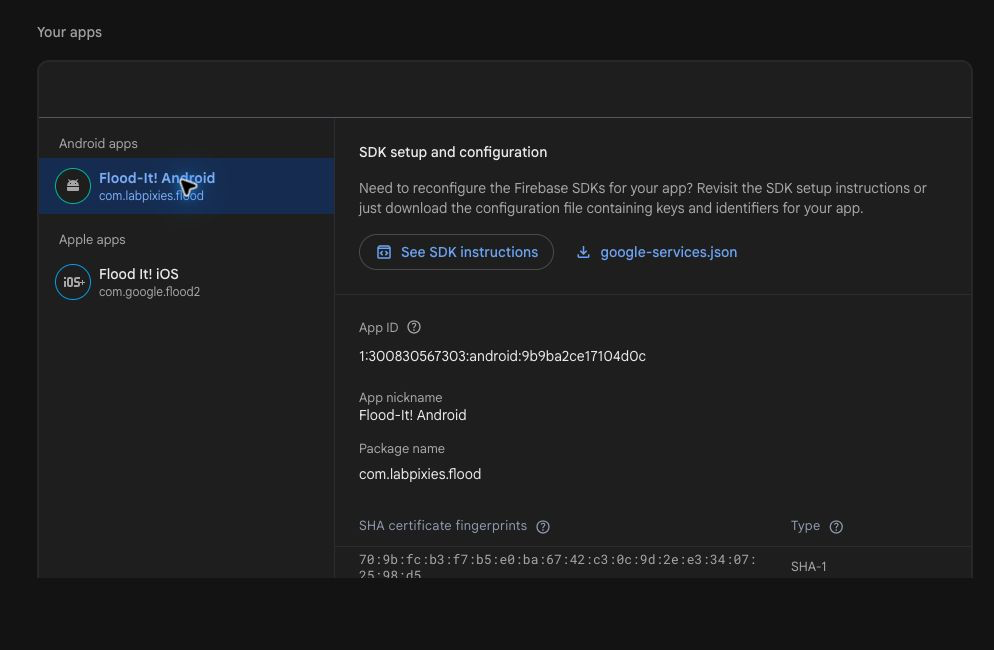
Download the Android configuration only after confirming that its package name matches applicationId.
flutterfire configure is not required unless you deliberately migrate the app to generated
firebase_options.dart configuration.
12.3 Register the iOS app
- In the same Firebase project, select Add app, then choose the Apple icon.
-
Enter the exact, case-sensitive bundle identifier from Xcode under
Runner > Signing & Capabilities. The source project default is
com.snginemessanger.app; use the customer's final value if it was changed. - Select Register app, then download
GoogleService-Info.plist. - Replace
ios/Runner/GoogleService-Info.plist. Keep the filename exact. - Open
ios/Runner.xcworkspacein Xcode. Confirm the file is visible under Runner and belongs to the Runner target. - Under Signing & Capabilities, enable Push Notifications and Background Modes > Remote notifications.
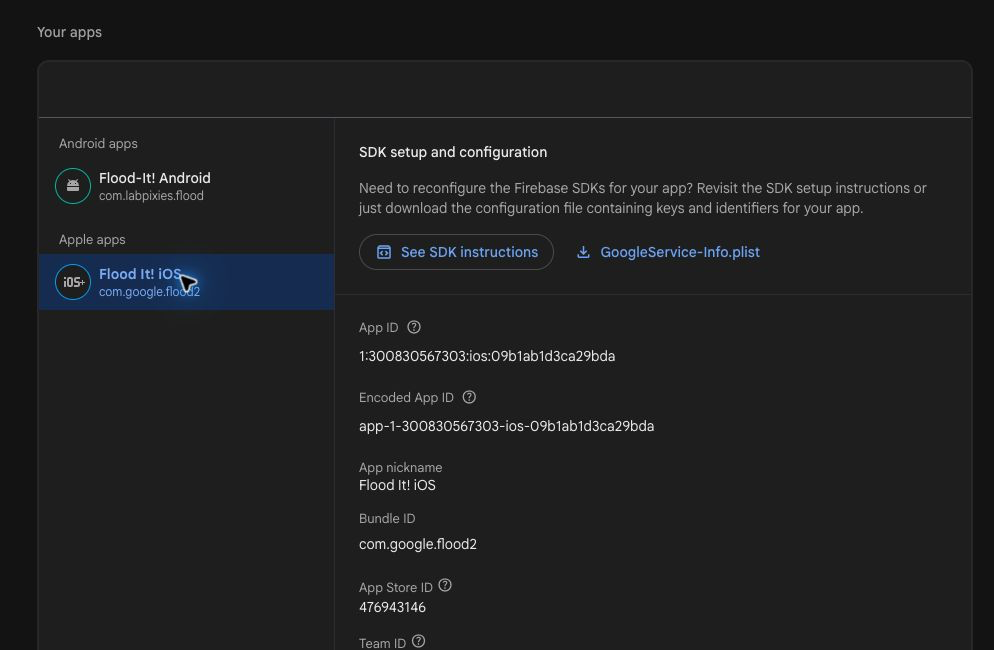
The Firebase bundle ID and Xcode Runner bundle ID must match exactly, including letter case.
12.4 Connect APNs for iPhone and iPad
- Open Apple Developer Certificates, Identifiers & Profiles > Keys.
- Create an APNs-enabled key and securely download the
.p8file. Apple allows this file to be downloaded once. - In Firebase Console, open Project settings > Cloud Messaging.
- Under the Apple app configuration, upload the APNs authentication key and enter its Key ID and the Apple Team ID.
12.5 Create the Firebase server service account
- In Firebase Console, open Project settings > Service accounts.
- Choose Firebase Admin SDK, then select Generate new private key and confirm.
- Store the downloaded JSON in a secure temporary location. Do not rename or edit its JSON fields.
- Confirm that the Firebase Cloud Messaging API (HTTP v1) is enabled for this Google Cloud project.
12.6 Link Firebase to the Messenger backend
- Open
https://your-domain.com/api-addon-messangr/admin/app-settings. - Open the Integrations section.
- Enable FCM Calls Enabled for incoming-call notifications.
- Enable FCM Groups Chat Enabled for group-chat notifications.
- Enter the exact FCM Project ID shown in Firebase Project settings.
- Upload the service-account JSON under FCM Service Account File, then save the settings.
Enable the required notification types, enter the Firebase project ID, upload the private JSON file, and save.
12.7 Rebuild and verify notifications
flutter clean
flutter pub get
flutter run- Remove the previous app build from the test device, then install the rebuilt application.
- Sign in and allow notification permission when prompted.
- Use real Android and iOS devices to test an incoming call and a new group message while the app is in the foreground, background, and fully closed.
- If available in Messenger Admin, use the FCM test tool with a current device token and confirm the HTTP v1 response is successful.
| Problem | What to check |
|---|---|
| Android has no FCM token | Verify google-services.json, its filename and path, and that package_name matches applicationId. |
| iOS token exists but notifications do not arrive | Verify the APNs key in Firebase, bundle ID, Push Notifications capability, remote-notification background mode, and device permission. |
SENDER_ID_MISMATCH |
The mobile configuration file and the uploaded service-account JSON came from different Firebase projects. |
401, invalid_grant, or authentication failure |
Upload a valid service-account JSON, confirm HTTP v1 is enabled, and check the server date and time. |
Official references: Android setup, Apple setup, FCM for Apple clients, Firebase Admin SDK, and FCM server environment.
13. Agora Setup
Messenger includes Agora-based calling support for audio and video calls. Before enabling call features in production, make sure your Agora configuration is valid.
Important Messenger runtime settings
| Key | Why it matters |
|---|---|
agoraEnabled |
Controls whether Agora-based calls are allowed. |
calls_enabled |
Controls whether call buttons should appear at all. |
audio_calls_enabled |
Controls whether audio call UI is available. |
video_calls_enabled |
Controls whether video call UI is available. |
agoraAppId |
Main Agora project App ID used by Messenger calls. |
agoraToken |
Optional static token if your setup needs it. |
agoraChannelPrefix |
Used to generate Messenger call channel names. |
agoraHeartbeatEnabled |
Controls call heartbeat updates during an active call. |
agoraHeartbeatIntervalSeconds |
Controls the heartbeat frequency. |
Where to configure them
- Messenger admin dashboard:
/api-addon-messangr/admin/app-settings - Public runtime endpoint:
/api-addon-messangr/app/settings - Fallback defaults in Flutter:
lib/settings.dart
agoraAppId is empty or invalid, call startup will fail even if the rest of the app works.
14. Dashboard Settings
After installation, Messenger-related settings can be changed from the Messenger admin dashboard, such as runtime flags, call settings, Timeline linking values, app colors, chat polling, and incoming call behavior.
Main admin URL
https://your-domain.com/api-addon-messangr/adminMain app settings URL
https://your-domain.com/api-addon-messangr/admin/app-settings15. App Settings
Messenger loads its public runtime settings from the backend during app bootstrap. This means some important values should be configured from the server dashboard, not only from local Flutter files.
Public settings endpoint
GET https://your-domain.com/api-addon-messangr/app/settingsWhat the app reads at startup
debugchatPollingEnabledchatPollingIntervalSecondsincomingCallPollingEnabledincomingCallPollingIntervalSecondsagoraHeartbeatEnabledagoraHeartbeatIntervalSecondscalls_enabledaudio_calls_enabledvideo_calls_enabledagoraEnabledagoraAppIdagoraTokenagoraChannelPrefixtimelineUrlSchemetimelineDeepLinkHosttimelinePackagetimelineAndroidStoreUrltimelineIosStoreUrl- Messenger app colors
/api-addon-messangr/app/settings first.
16. Screenshots Guide
This section is prepared for real setup screenshots. Save your screenshots inside
docs/screenshots/ using the exact filenames below and they will appear here automatically.

Recommended: show the main api-addon-messangr/admin dashboard.

Recommended: show timelineUrlScheme, timelineDeepLinkHost, and polling settings.

Recommended: show the Agora project page where the App ID is copied.

Recommended: show the selected Apple team and final Messenger bundle identifier.

Recommended: show applicationId and namespace in build.gradle.kts.

Recommended: show the Messenger license generation form on the official portal.
17. Release Checklist
- Upload the
api-addon-messangrbackend files to the Sngine root. - Open
/api-addon-messangr/install.phpand activate the backend addon with the Messenger purchase code. - After uploading updated backend files, open
/api-addon-messangr/update.phpin the browser. - Generate and replace
lib/core/license/licenses.dartwith the customer Messenger license file. - Confirm
API KeyandAPI Secretare active in/admincp/apis. - Change Android
applicationIdand iOSbundle ID. - Register the final Android and iOS identifiers in the same Firebase project and replace both Firebase configuration files.
- Configure the APNs authentication key in Firebase for iOS notifications.
- Upload the Firebase service-account JSON in Messenger Admin and test FCM calls and group-chat notifications.
- Change the app name in Android and iOS.
- Replace launcher icons and splash assets.
- Review Messenger app settings in
/api-addon-messangr/admin/app-settings. - Confirm Timeline integration values are correct.
- Review Agora settings and test both audio and video calls on real devices.
- Create the Android release keystore and configure
android/key.properties. - In Xcode, set your Apple team in
Signing & Capabilities. - Update the app version in
pubspec.yamlbefore final store builds. - Run
flutter clean,flutter pub get, then test Android and iOS separately.
version: 1.0.0+118. Troubleshooting
Messenger opens but login or chat fails
- Check that
api-addon-messangrwas uploaded correctly. - Open
/api-addon-messangr/update.phpagain in the browser after uploading updated backend files. - Confirm the generated license file matches the same website domain.
- Confirm the API credentials in
/admincp/apisare correct.
Messenger opens but Timeline integration fails
- Check
timelineUrlSchemein Messenger app settings. - Check
timelineDeepLinkHostin Messenger app settings. - Check
timelinePackagefor Play Store fallback on Android.
Calls do not start
- Check that
agoraEnabledis true. - Check that
calls_enabled,audio_calls_enabled, orvideo_calls_enabledare enabled as needed. - Check that
agoraAppIdis valid. - Check microphone and camera permissions on the device.
Push notifications do not arrive
- Confirm the Android package name or iOS bundle ID matches its Firebase app registration exactly.
- Confirm
google-services.jsonandGoogleService-Info.plistcame from the same Firebase project as the server service account. - Check the FCM Calls and FCM Groups Chat switches in Messenger Admin.
- For iOS, also check the APNs key, Xcode Push Notifications capability, remote-notification background mode, and notification permission.
The app fails immediately on startup
- Check that
lib/core/license/licenses.dartwas replaced with a valid generated Messenger license file. - Run
flutter cleanandflutter pub getafter configuration changes. - Check the terminal, Android Studio, or Xcode logs for the first thrown error.
19. Important Notes
- Use a unique package name before publishing to Google Play or the App Store.
- Upload, install, and update the Messenger backend addon before testing the mobile app.
- Some Messenger runtime values are loaded from
/api-addon-messangr/app/settings, not only from local Flutter code. - Complete license activation and confirm your API credentials before production use.
- Review Agora settings before enabling calls for customers.
- Keep Firebase mobile configuration files and the server service account from the same Firebase project.
- Never commit or distribute the Firebase service-account JSON with the mobile application.
- Run
flutter cleanandflutter pub getafter major configuration changes. - Always test Android and iOS builds separately before final release.
20. Official Sources
- Flutter Installation Guide
- Flutter SDK Archive
- Flutter Android Deployment
- Flutter iOS Deployment
- Android App Signing
- Apple Releases
- Xcode Updates
- Android Latest Updates
- Android Studio
- Agora Documentation
- Add Firebase to Android
- Add Firebase to Apple Platforms
- Firebase Cloud Messaging for Apple Clients
- Firebase Admin SDK Setup
- FCM Server Environment